20 November 2016

13 November 2016
Day Eight - Introduction to Kodu Game Lab with the BBC micro:bit
Today we will be using Kodu Game Lab to create a game where a Kodu collects apples, and every time the Kodu eats an apple the Kodu scores a point. Plus we will be using the BBC micro:bit to control the Kodu.
When you start, click on the Kodu icon. Then double tap and press on the Kodu.
After that right click the Kodu and press 'program'. Under the 'WHEN' tab select the micro:bit icon and next to it press tilt. Under the 'DO' tab put move and quickly.
On the second row, under the when tab, put in bumped and then the apple icon, eat and in the other line put WHEN bumped apple: change score by one.
Then, add in apples using the technique we did for adding in the Kodu.
Next, press on the brush tool in the bar and drag it while clicking to add in more land.
Then create a balloon and then program it to: When see not apple - Do win.

And we're done!
6 November 2016
Day Seven - Space Invaders
Hello everyone, bit by bit here and today I will explain how I made a basic Space Invaders game.
First I will explain the enemy's code. There is a while true block: it's use is like a forever loop. The repeat 4 allows the enemy to move with the change X block and the pause ms slow down the enemy. This apply's for both loops except the other one goes in the opposite direction.

The bomb mechanism works by changing the y of the bomb. It spawns on the position of the enemy with the set sprite block (it was also used at the top of the section of code, generating the ship at (2,4) and the enemy at (0,0). Then, it immediately fires with the change y block, which is in a repeat 4 block. It is slowed down by 200ms. But if the bomb misses, which the micro:bit can tell with the if statement, y of bomb is bigger or equal to row 4. Next, the bomb is sent back to its original position and its brightness 0 so it isn't seen. Above that is the if statement, bomb touching ship: game over. Then duplicate it on to the other movement loop.

OK, so now lets see how the ship is controlled. There is a when button A pressed: change x of ship by -1. This is the same for when B is pressed except -1 is 1.
Now, lets get on to the ship's firing system. When A + B are pressed together, missile is generated at ship, then there is a repeat 4 loop under and the y of the missile is changed by -1 (or up as the micro:bit grid is the opposite of our up.) The next if statement is similar to the bomb one. If missile is equal to or greater than 0, it resets the position and the brightness is 0. In the first if statement is a second, if missile is touching enemy: change score by one.

My channel: https://www.youtube.com/channel/UCBM75CLZnKs5J2Ri2UpmAg
27 October 2016
Day Six - Python Animation
MicroPython Animation
Animation is the process of making the illusion of motion and change[Note 1] by means of the rapid
display of a sequence of static images that minimally differ from each other. The illusion—as in motion pictures in general—is thought to rely on the phi phenomenon. Animators are artists who specialize in the creation of animation. Animation can be recorded with either analogue media, a flip book, motion picture film, video tape, digital media, including formats with animated GIF, Flash animation and digital video. To display animation, a digital camera, computer, or projector are used along with new technologies that are produced.
From Wikipedia.
Today, I'm going to explain to you about how to make a python animation.
If you go on to the MicroPython editor it will look like this :
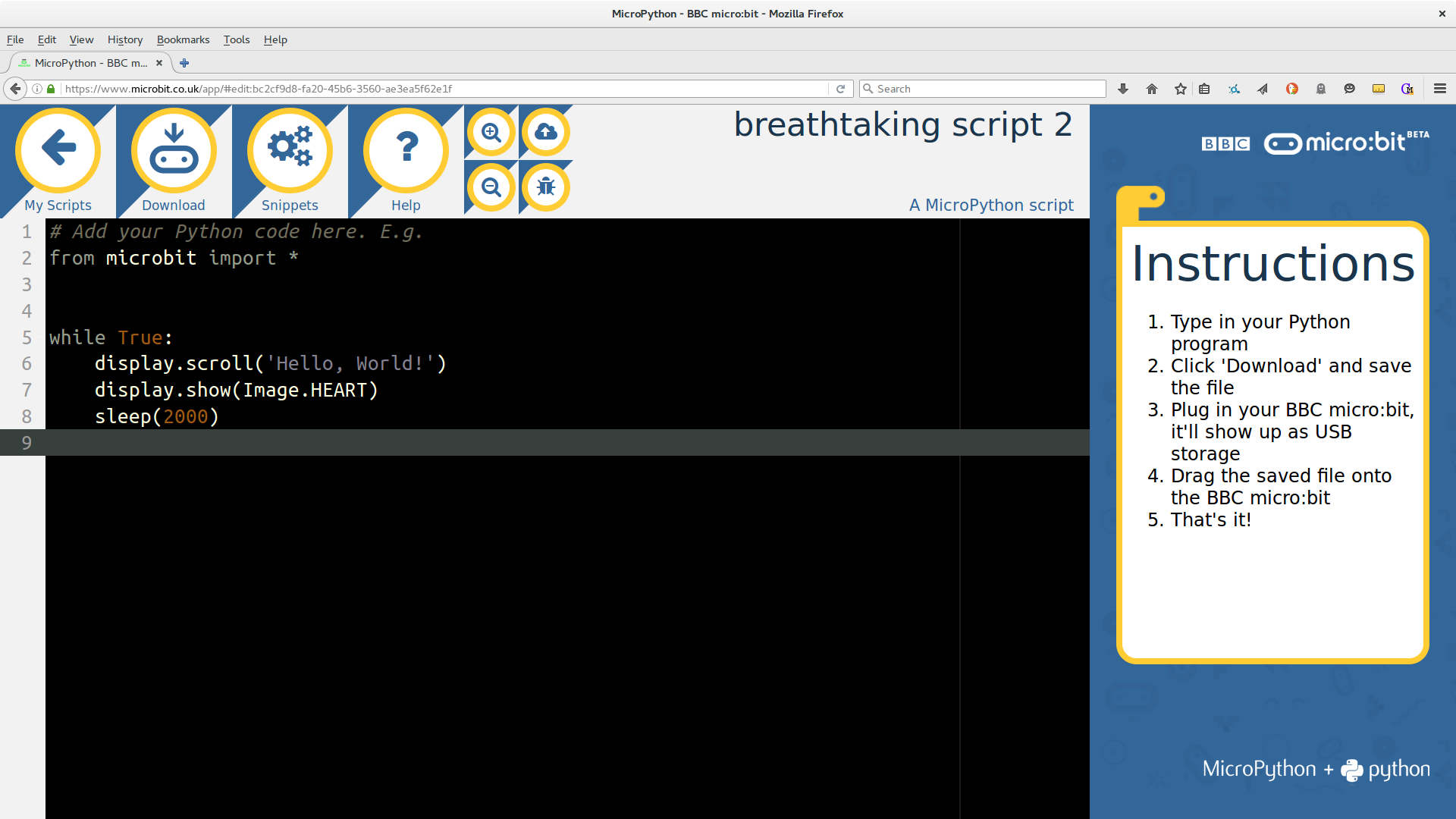
If you put in this bit of code,you can adjust the brightness of each light (by putting in numbers 1-9,nine as brightest) and if you put all the pictures together it can make an animation.
any_name_you_want = Image("00000:"
                          "00000:"
                          "00000:"
                          "00000:"
                          "00000")
Example of an Animation:
any_name_you_want1 =Image("00000:" "00000:" "00000:" "00000:" "90000")any_name_you_want2 =Image("00000:" "00000:" "00000:" "09000:" "80000")any_name_you_want3 =Image("00000:" "00000:" "00900:" "08000:" "70000")any_name_you_want4 =Image("00000:" "00090:" "00800:" "07000:" "60000")any_name_you_want5 =Image("00009:" "00080:" "00700:" "06000:" "50000")Also, you can plan out your animation with a 5x5 grid.

26 October 2016
Day Five - Fixed and a Crossbar Challenge!
The micro:bit is fixed!!
Thanks very much to my dad for repairing my micro:bit by soldering the connector back on.
:)
Crossbar Challenge and Counter!
In this video I will explain to you about how to make a crossbar challenge counter. The micro:bit will count up by one every time it shook and when you pressed button A it would clear the screen and start again.
25 October 2016
Day 4 - Is this the End?
My micro:bit is broken!
I was planning to do a video on my crossbar challenge counter. The micro:bit was attached to the crossbar of the goalposts and every time the ball hit the crossbar or the micro:bit shook the counter would go up by one and when you pressed button A it would restart. The micro:bit could do so as it had an accelerometer built in which detects vibrations and movement.
Before we started filming I hit the micro:bit with the ball ... and it broke! :(
Before we started filming I hit the micro:bit with the ball ... and it broke! :(
 Next time I'll put the micro:bit in a box. But because I broke the micro:bit I might not be blogging very much. So goodbye for now!

24 October 2016
Day Three - Stopwatch Part Three
Code Improvement
As I said in my last video, I will improve my code because it wouldn't stop entirely. Now here it is!
The issue was that when I pressed B it would only stop for five seconds. In the video I will explain how to enhance a micro:bit stopwatch with the main point of making the variable 'counter'.
After this video the micro:bit should:
1. When A is pressed, start counting.
2. When B is pressed, stop until A is pressed again.
The issue was that when I pressed B it would only stop for five seconds. In the video I will explain how to enhance a micro:bit stopwatch with the main point of making the variable 'counter'.
After this video the micro:bit should:
1. When A is pressed, start counting.
2. When B is pressed, stop until A is pressed again.
Subscribe to:
Posts (Atom)